


 4.5
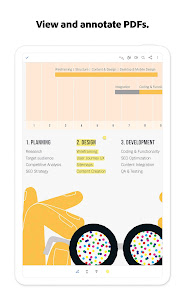
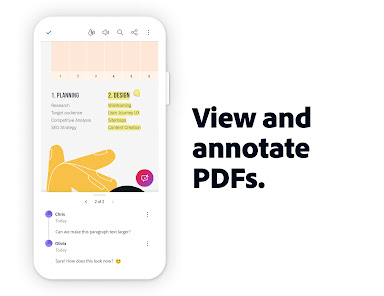
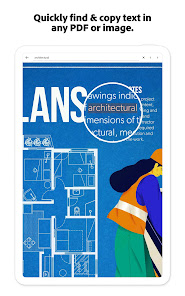
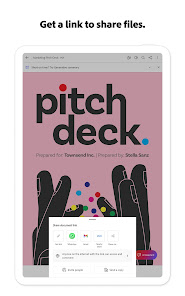
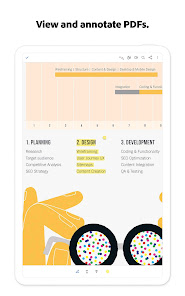
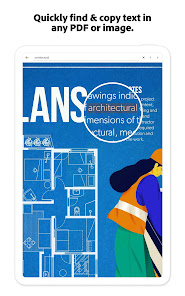
4.5 In my daily routine, Adobe Acrobat Reader has become an invaluable tool. I frequently work with PDFs for various projects, from marketing proposals to client reports. For instance, last week, I received a lengthy PDF document filled with client specifications. Using the annotation tools, I was able to highlight important sections and add comments for clarification before discussing them with my team. This kind of real-time interaction is essential in maintaining a collaborative workflow.
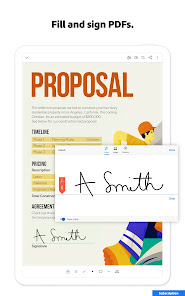
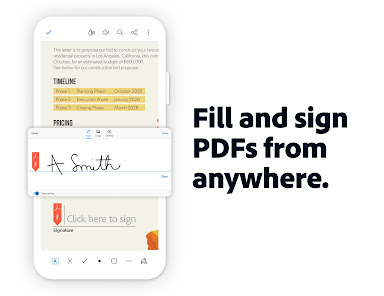
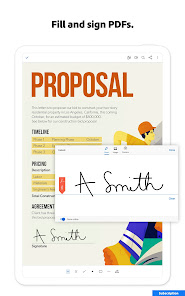
Moreover, during the last quarter, I had to finalize a contract with a vendor. Instead of the traditional back-and-forth of printing, signing, and scanning, I simply used the document signing feature. This not only expedited the process but also ensured that all records were kept digital and easily accessible. The convenience of having such functionalities in one app cannot be overstated.
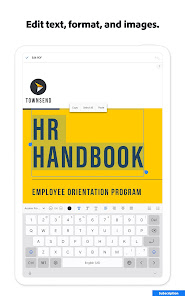
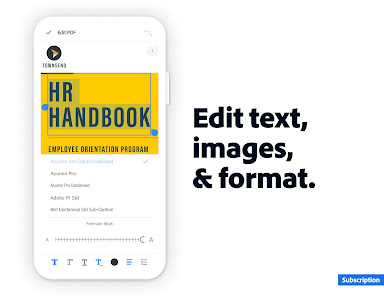
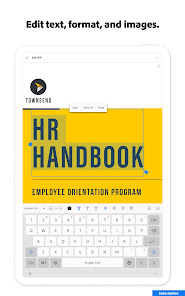
The UI of Adobe Acrobat Reader is user-friendly and intuitive. The home screen is neatly organized, making it easy to navigate through recent documents and features. The workflow is smooth; for example, when I want to edit a PDF, I simply open the file, tap on the edit button, and I’m presented with all the tools I need. The performance is generally fast, with minimal loading times, which is crucial when handling large files.
One aspect that I particularly appreciate is the responsive nature of the app. Whether I'm using it on my tablet or smartphone, the layout adjusts perfectly, ensuring that I can work from any device. After using Adobe Acrobat Reader for several months, I feel confident in its capabilities. It has significantly streamlined my document management process, and I find myself relying on it more than I initially expected.
Adobe Acrobat Reader offers a free version, which includes basic functions like viewing and commenting on PDFs. However, for advanced features such as editing, converting, and electronic signing, users need to subscribe to Adobe Acrobat Pro DC. The pricing is competitive, with monthly and annual plans available, allowing users to choose an option that best fits their needs. Given the app’s functionality, I believe the cost is justified, especially for professionals who work extensively with documents.
Adobe regularly updates Acrobat Reader to enhance its features and security. I’ve noticed improvements in functionality and user experience with each update, which reassures me that the app is actively maintained. Additionally, Adobe provides robust customer support, including a comprehensive help center with tutorials and troubleshooting guides. Whenever I encounter an issue, I feel confident that I can find a solution quickly through their resources.
As a regular user of Adobe Acrobat Reader, security and privacy are significant considerations for me. The app is available on both the App Store and Google Play, ensuring that it’s easy to find and download from reliable sources. Adobe takes user privacy seriously; however, registration may require personal data, which is a standard practice for many applications. Still, I appreciate that Adobe offers options to manage privacy settings within the app.
In terms of ads or tracking behavior, I’ve noticed that the app is relatively free from intrusive advertisements, which is a breath of fresh air. Adobe does collect some data to improve user experience, but they are transparent about it. For users who prioritize security, Adobe Acrobat Reader provides a solid platform, with encrypted cloud storage options and regular updates to protect sensitive information. Overall, I feel secure using this app for both personal and professional documents.

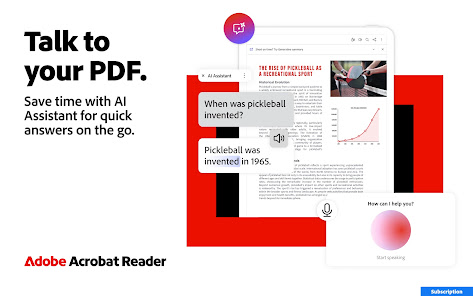
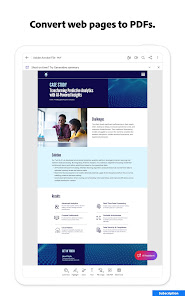
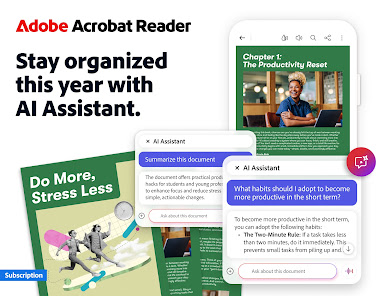
 Easily edit text and images in PDFs Merge multiple files into a single PDF Add comments and annotations for collaboration Convert PDFs to Word or Excel formats Secure documents with password protection
 Limited editing features compared to full software Requires subscription for advanced tools Performance issues with large files User interface can be confusing
 Adobe Acrobat Reader: Edit PDF may collect certain personal data to enhance user experience, such as usage statistics and preferences. However, Adobe prioritizes user privacy and provides options for managing data collection settings.
Adobe Acrobat Reader: Edit PDF offers a free version with basic functionalities, and users can also access a free trial of premium features to explore advanced editing and collaboration tools before committing to a subscription.
While some features of Adobe Acrobat Reader: Edit PDF may require an internet connection, such as cloud storage access and collaboration tools, the basic functionalities like viewing and editing PDFs can be used offline.
You can contact support or send feedback for Adobe Acrobat Reader: Edit PDF through the Adobe website, where you will find resources like live chat, community forums, and help articles to assist you with your inquiries.
You can manage or cancel your Adobe Acrobat Reader: Edit PDF subscription through your Adobe account settings. Simply log in, navigate to the 'Plans' section, and follow the prompts to make changes to your subscription.
Activation is automatic upon signing in with your Adobe ID. If you have a subscription, ensure you are logged in to access premium features.
You can reach Adobe customer service through their official website or by calling their support number listed on the site.
Open the app, tap on 'Sign In' and enter your Adobe ID and password. If you don’t have an account, you can create one from the same screen.
Adobe does not have a specific customer number; support can be accessed via their website or through the Adobe Support Community.










 Home
Home  Apps
Apps  Games
Games  Disclaimer
  Privacy & Policy
  Terms of Service
  Google Play
  App Store