




 2.5
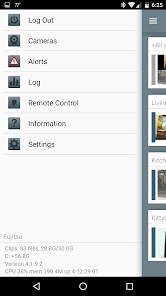
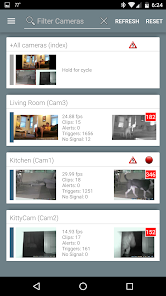
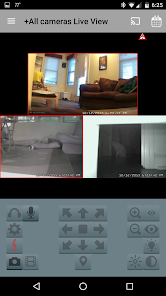
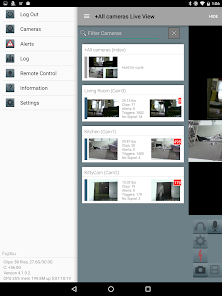
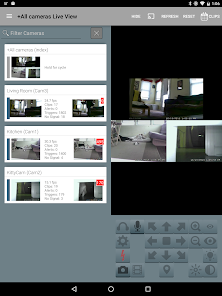
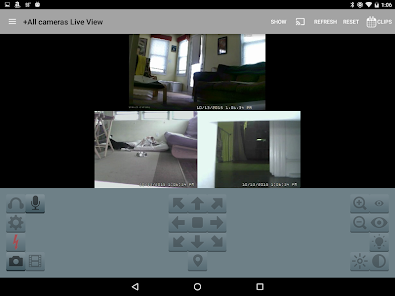
2.5 Blue Iris is a powerful video surveillance software that offers a wide range of features designed for both home and business security. One of its standout features is the ability to support multiple camera types, including IP cameras, webcams, and analog cameras, allowing users to customize their surveillance setup according to their needs. The software also provides real-time monitoring, enabling users to view live feeds from their cameras on various devices, including smartphones and tablets.
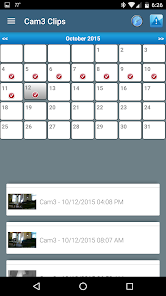
Another notable feature is motion detection, which can trigger alerts and notifications when movement is detected in the camera's field of view. Users can also set up recording schedules, ensuring that footage is captured only when needed, thus saving storage space. Additionally, Blue Iris supports remote access, allowing users to manage their cameras and view footage from anywhere with an internet connection. The software also includes advanced features such as video analytics, which can help identify specific events or behaviors, enhancing overall security management.
Using Blue Iris is straightforward, even for those who may not be tech-savvy. First, download and install the software on your Windows PC. Once installed, launch the application and begin by adding your cameras. This can be done by navigating to the 'Camera' tab and selecting 'Add Camera.' You will need to input the camera's IP address or select it from the list of detected devices.
After adding your cameras, configure the settings according to your preferences. This includes setting up motion detection zones, adjusting recording schedules, and enabling notifications. To view live feeds, simply click on the camera you wish to monitor. For remote access, ensure that your network settings are configured correctly, allowing you to connect via a mobile app or web browser. Regularly check for software updates to ensure you have the latest features and security enhancements, making your surveillance system as effective as possible.
Blue Iris comes with several advantages that make it a popular choice for video surveillance. One of the primary pros is its versatility, as it supports a wide range of camera types and brands, making it suitable for various setups. The software's robust feature set, including motion detection, remote access, and customizable recording options, provides users with comprehensive control over their security systems. Additionally, the user-friendly interface makes it accessible for both beginners and experienced users.
However, there are some drawbacks to consider. One con is that Blue Iris is primarily designed for Windows, which may limit its usability for Mac or Linux users. Furthermore, while the software offers a wealth of features, it may require a learning curve for those unfamiliar with surveillance systems. Lastly, the initial cost of the software and potential additional expenses for camera hardware can be a consideration for budget-conscious users. Balancing these pros and cons is essential for anyone considering Blue Iris for their surveillance needs.

 Flexible camera support for various brands and models User-friendly interface simplifies setup and management Advanced motion detection reduces false alarms Remote access enables monitoring from anywhere Comprehensive recording options enhance security coverage
 Limited integration options with non-IP cameras can restrict system flexibility. High resource usage may require powerful hardware for optimal performance. The user interface can be complex, posing a learning curve for new users.
  Google Play
  App Store
 Blue Iris does not inherently collect personal data but may log information related to the use of its services. Users should review the privacy policy for specific details on data handling practices.
Yes, Blue Iris offers a 14-day free trial, allowing users to test the full functionality of the software before committing to a purchase. There is no free version available beyond the trial period.
While Blue Iris can function without an internet connection for local monitoring, an internet connection is necessary for remote access and certain features like cloud storage or notifications.
You can contact Blue Iris support through their official website, where you can submit a support ticket or find additional resources. Feedback can also be sent via their contact page.
You can manage or cancel your Blue Iris subscription through your account settings on the Blue Iris website or by contacting their support team for assistance.
Customer numbers are unique and cannot be changed. If you have issues, please contact customer service for further assistance.
No, each user should have only one account with a unique customer number. For help, contact customer service.
You can reach customer service via the support section on our website or by calling the support number listed there.
After purchase, check your email for an activation link. Click it to activate your account. If you don't see it, contact customer service.
Visit the Blue Iris website and navigate to the support section for contact information.















 Home
Home  Apps
Apps  Games
Games  Disclaimer
  Privacy & Policy
  Terms of Service